Nine simple steps, from opening our menu on your phone to the confirmation email in your inbox. Follow the screenshots and you will be done in about two minutes.
9 steps · about 2 minutes · screenshots from the real order page
1
Open the order menu
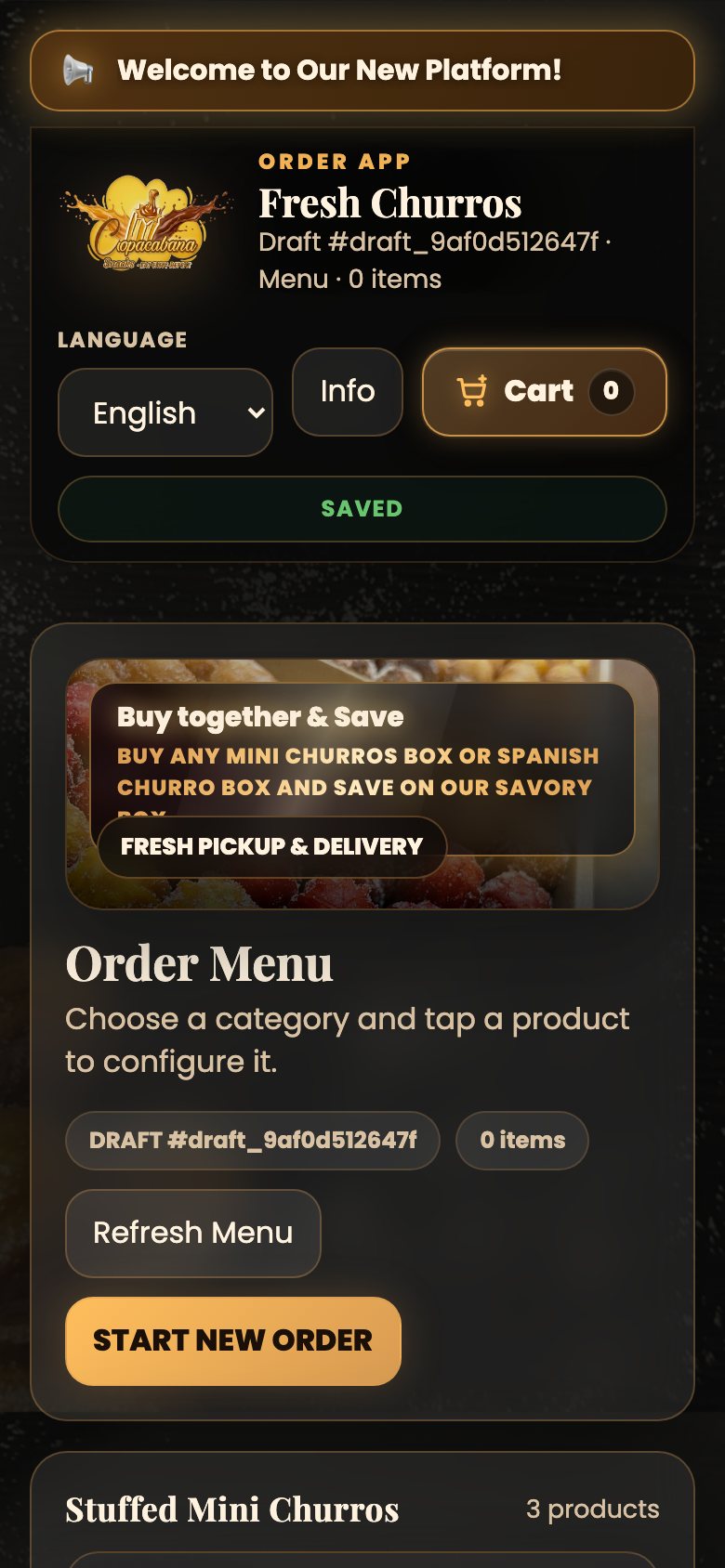
Tap Order Now anywhere on our site, or open order.copasnacks.com/order. The menu opens with every available item, box size and price, and it stays in English or Spanish depending on your selection at the top.
2
Choose your item and its options
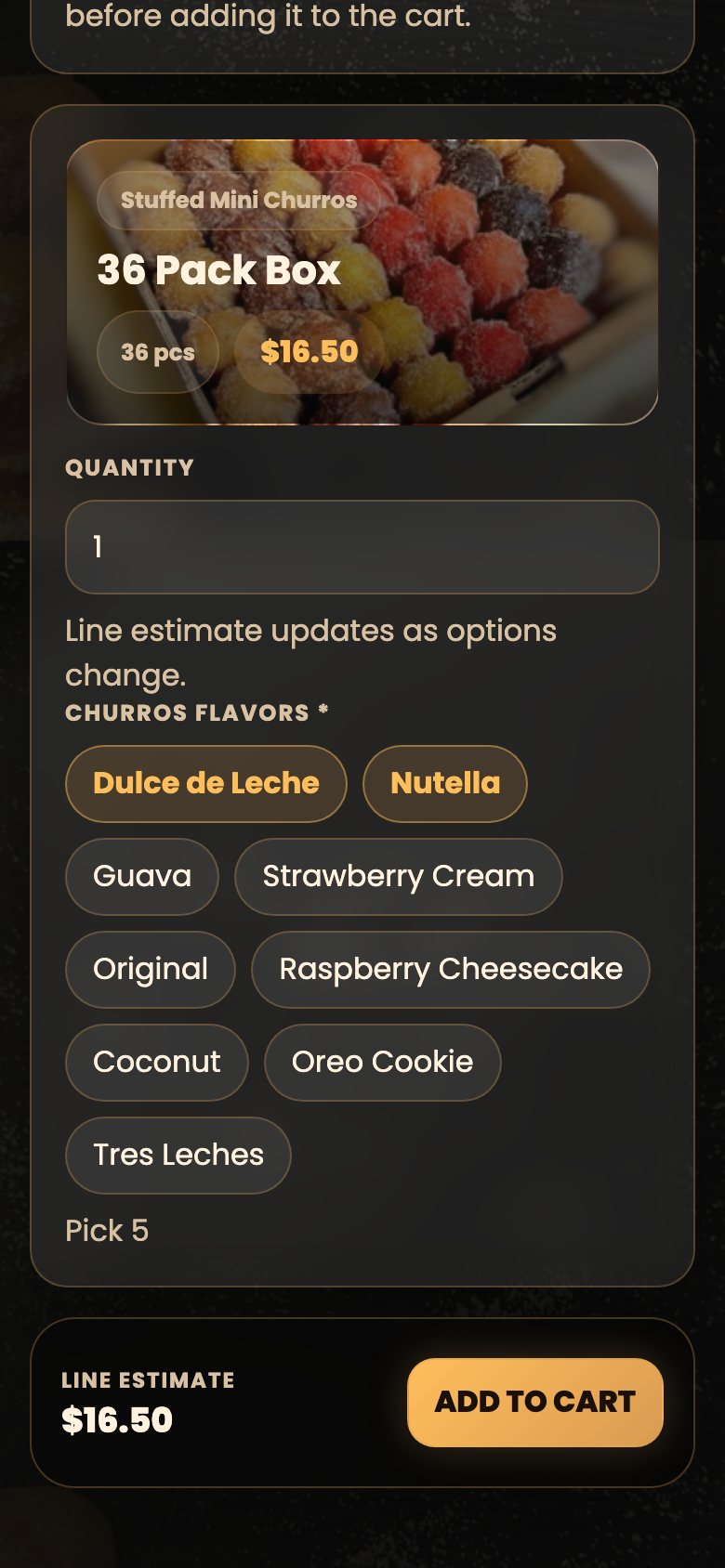
Tap an item to open it, set the quantity you want and choose the required options, such as the flavors in your box. The line total updates as you choose. When everything is selected, tap Add to Cart.
3
Review your cart
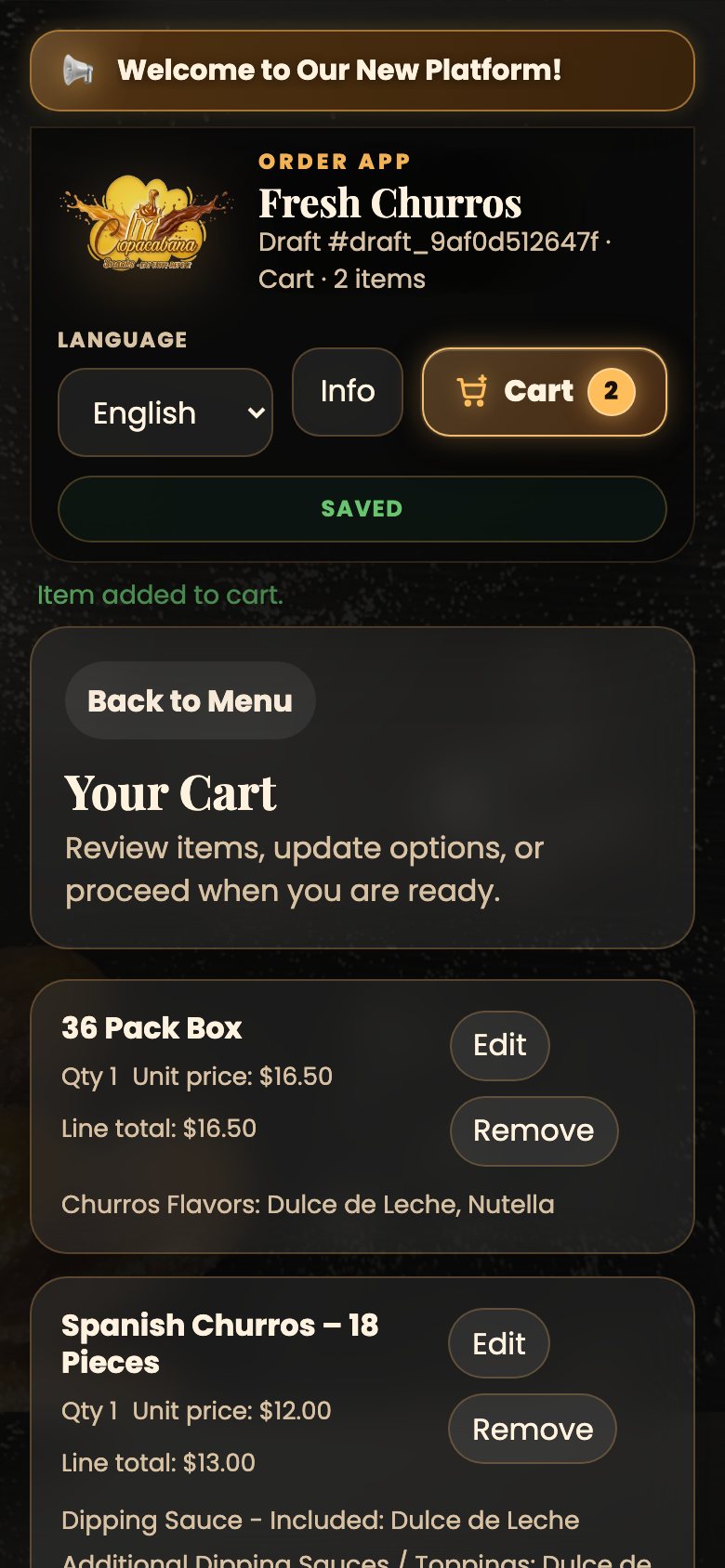
Your items appear in the cart with their quantities and totals. Tap an item to edit it, change the quantity, or remove what you do not want. When the cart looks right, tap Go to Checkout.
4
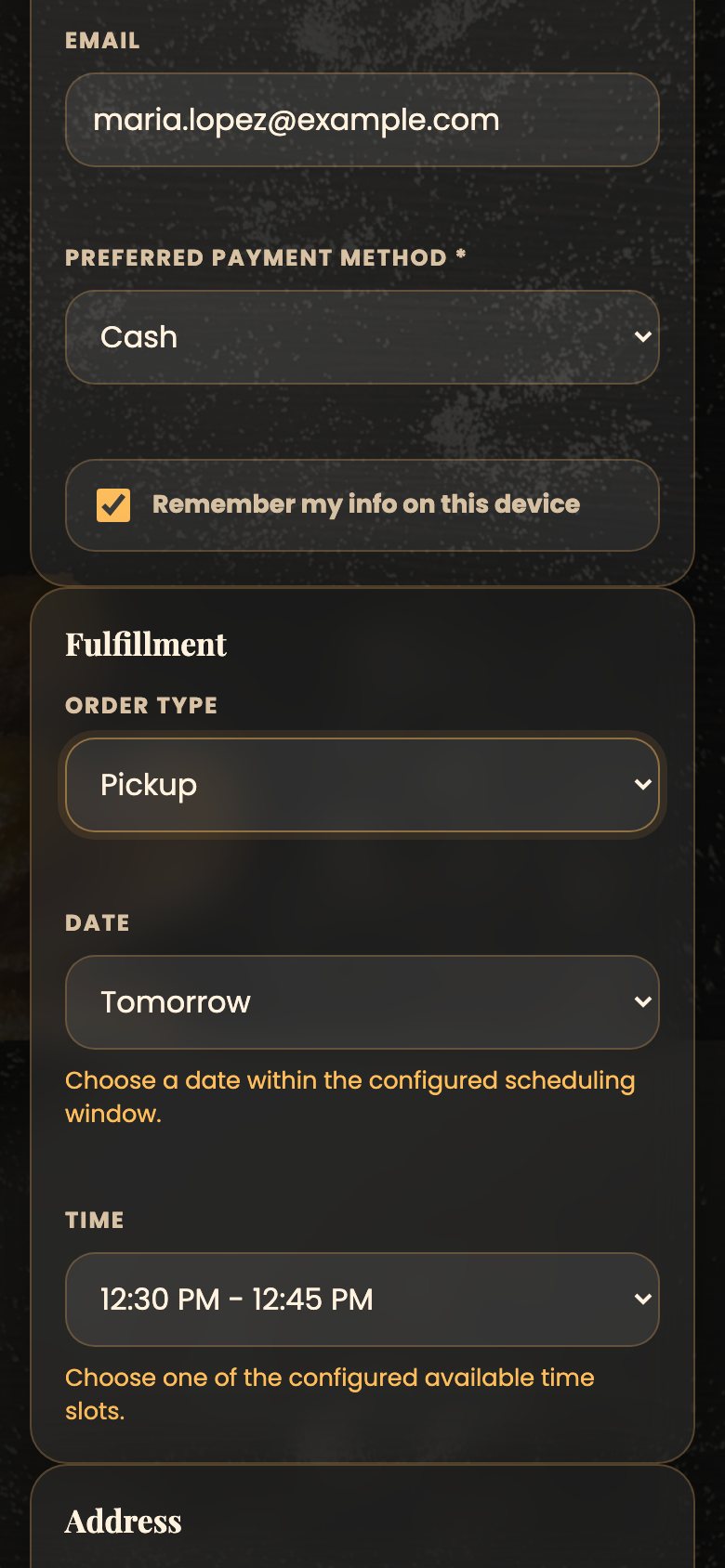
Fill in your details
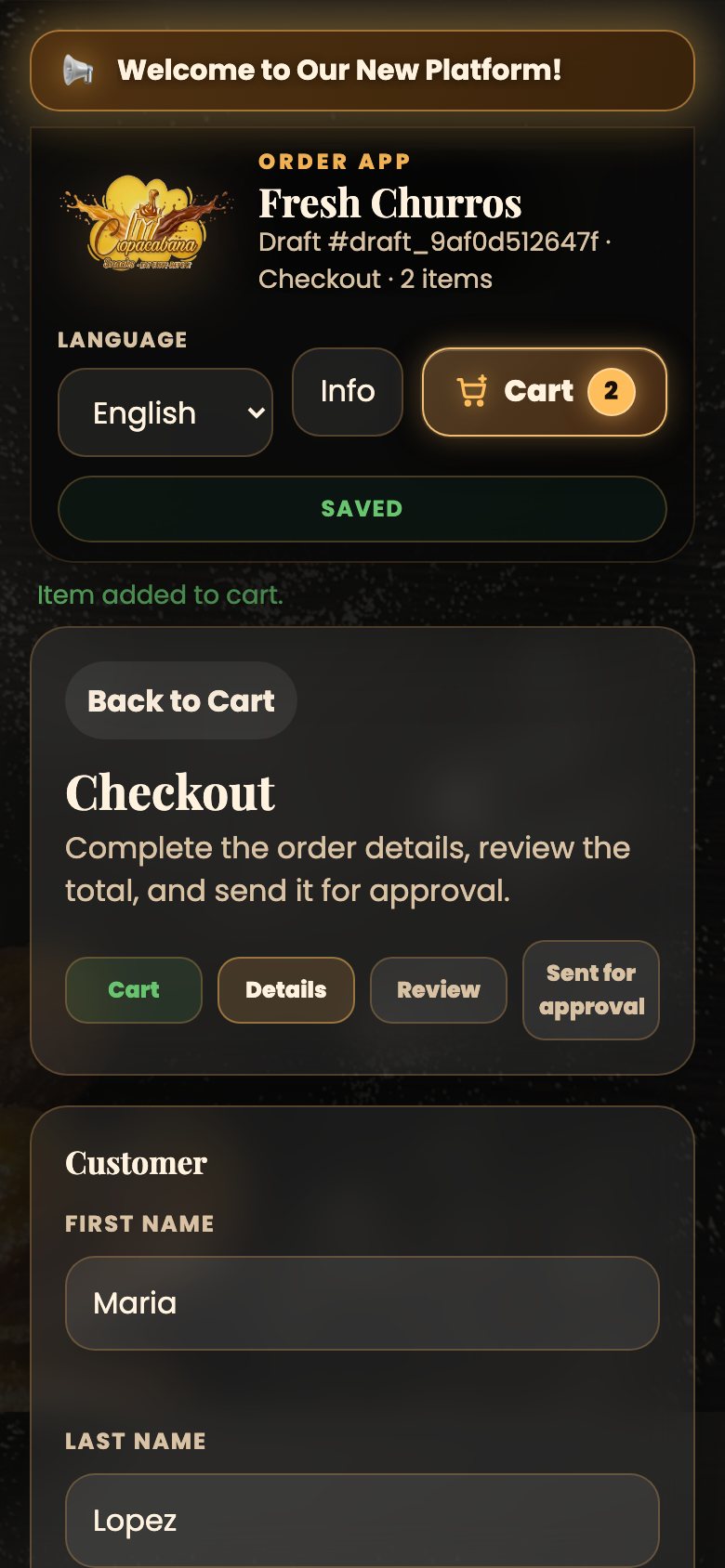
Enter your first and last name, your phone and your email — this is where your confirmation goes, so please double-check it. Then choose your preferred payment method. If you pay online, the checkout may still list Cash: submit your order first and use our payment links afterwards.
5
Choose delivery or pickup, date and time
Select Delivery or Pickup, then the date and the time that work for you. Times that are already full do not appear in the list, so every option you see is available. Pickups and deliveries run in small windows to keep everything fresh.
6
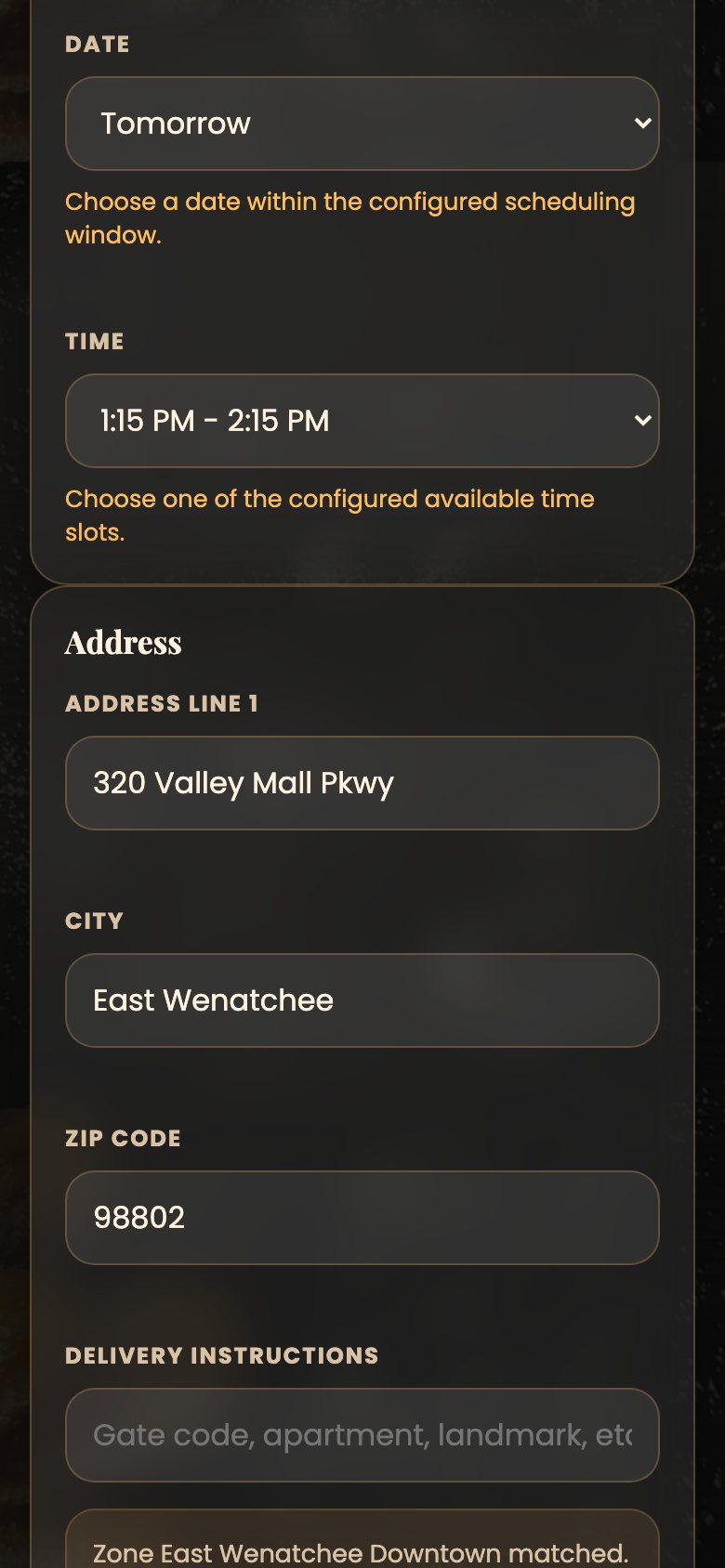
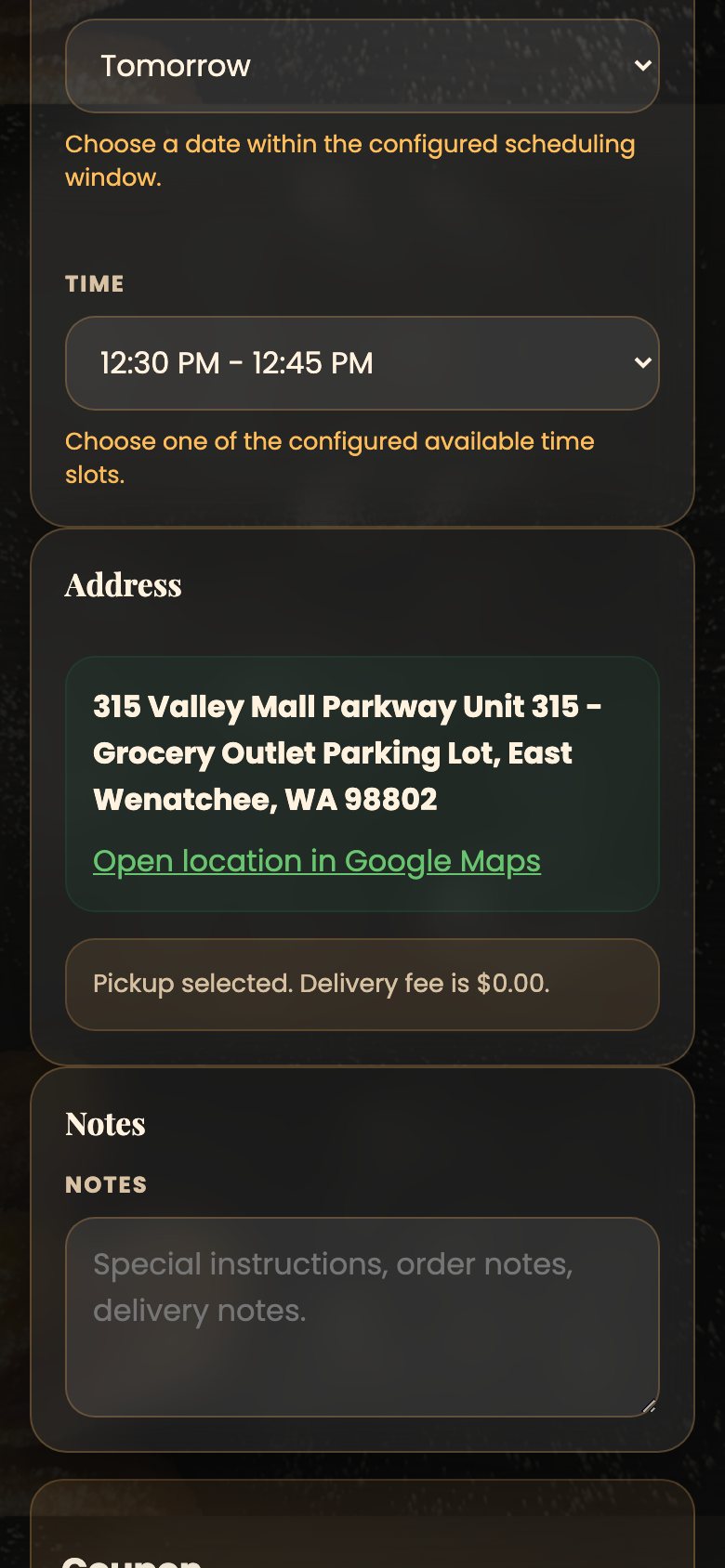
Add your address — or check your pickup point
For delivery, fill in address, city and ZIP code so we can confirm your zone and show the delivery fee. For pickup, we show the meeting point and a link that opens the exact spot in Google Maps.
DeliveryPickup
7
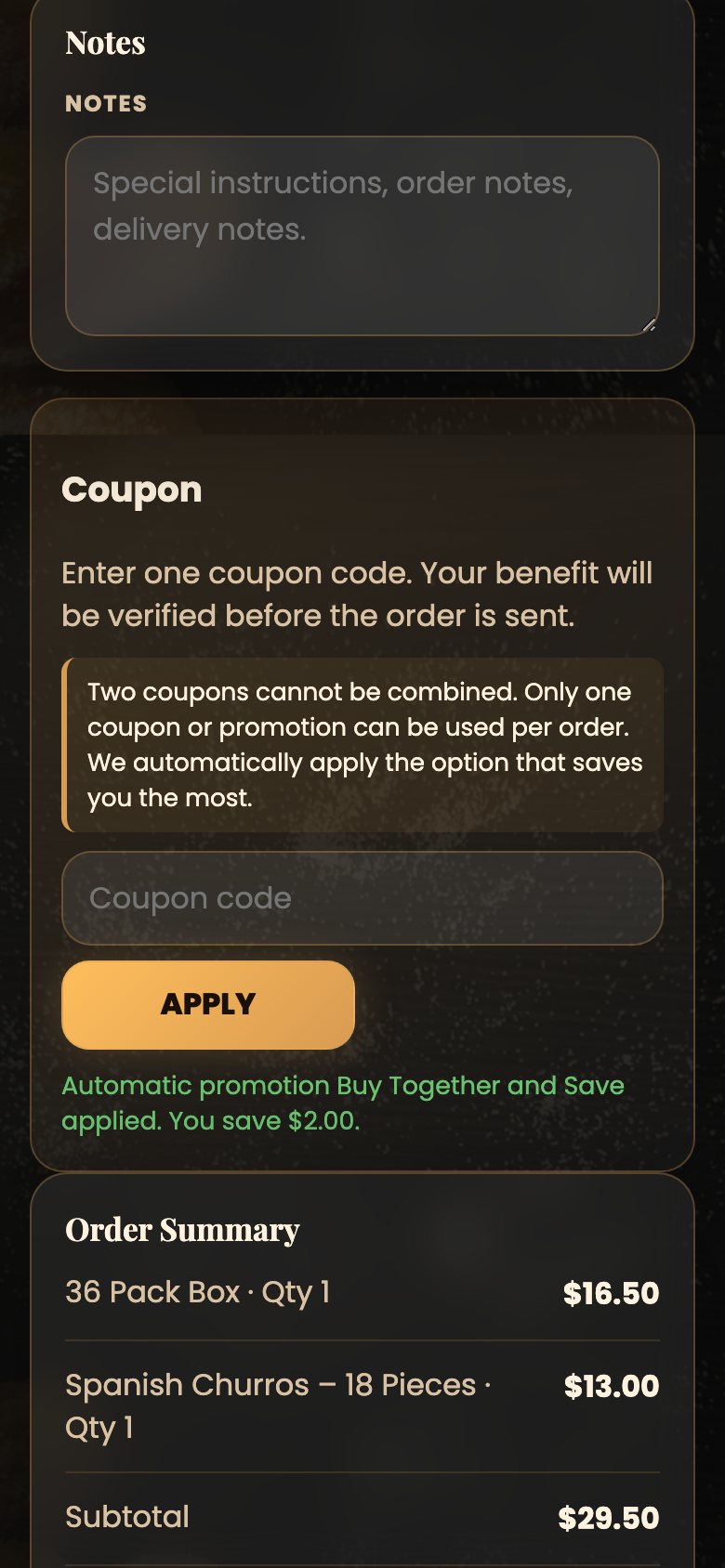
Coupon or gift certificate (optional)
If you have a coupon or a gift certificate code, type it in and tap Apply — or Check Balance for a gift certificate. Only one coupon or promotion can be used per order: we always keep the option that saves you the most.
8
Review and confirm your order
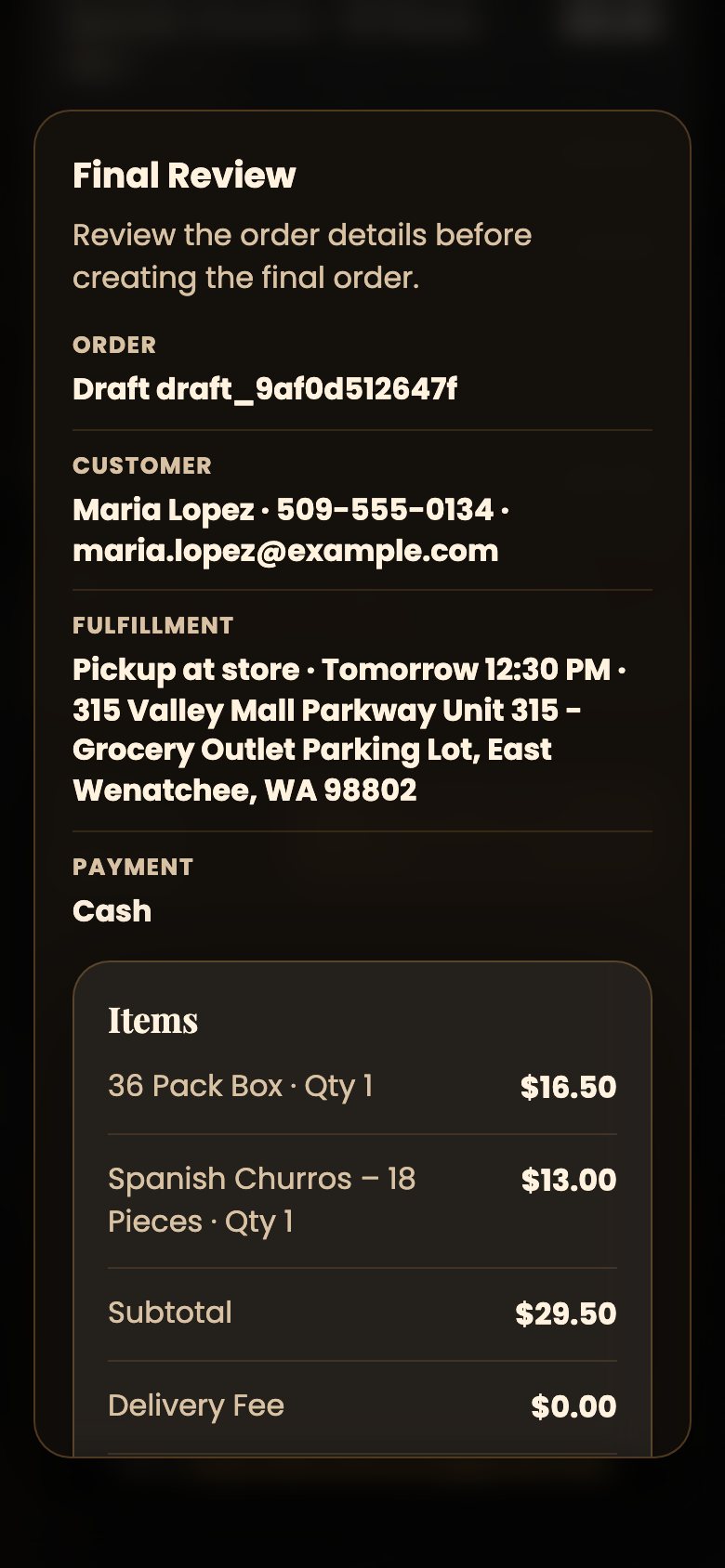
Check the order summary, accept the order policies and tap Confirm Order. A Final Review window opens with your items and details — read it one more time and confirm. Your order is then sent to us for approval.
9
Watch for your confirmation email
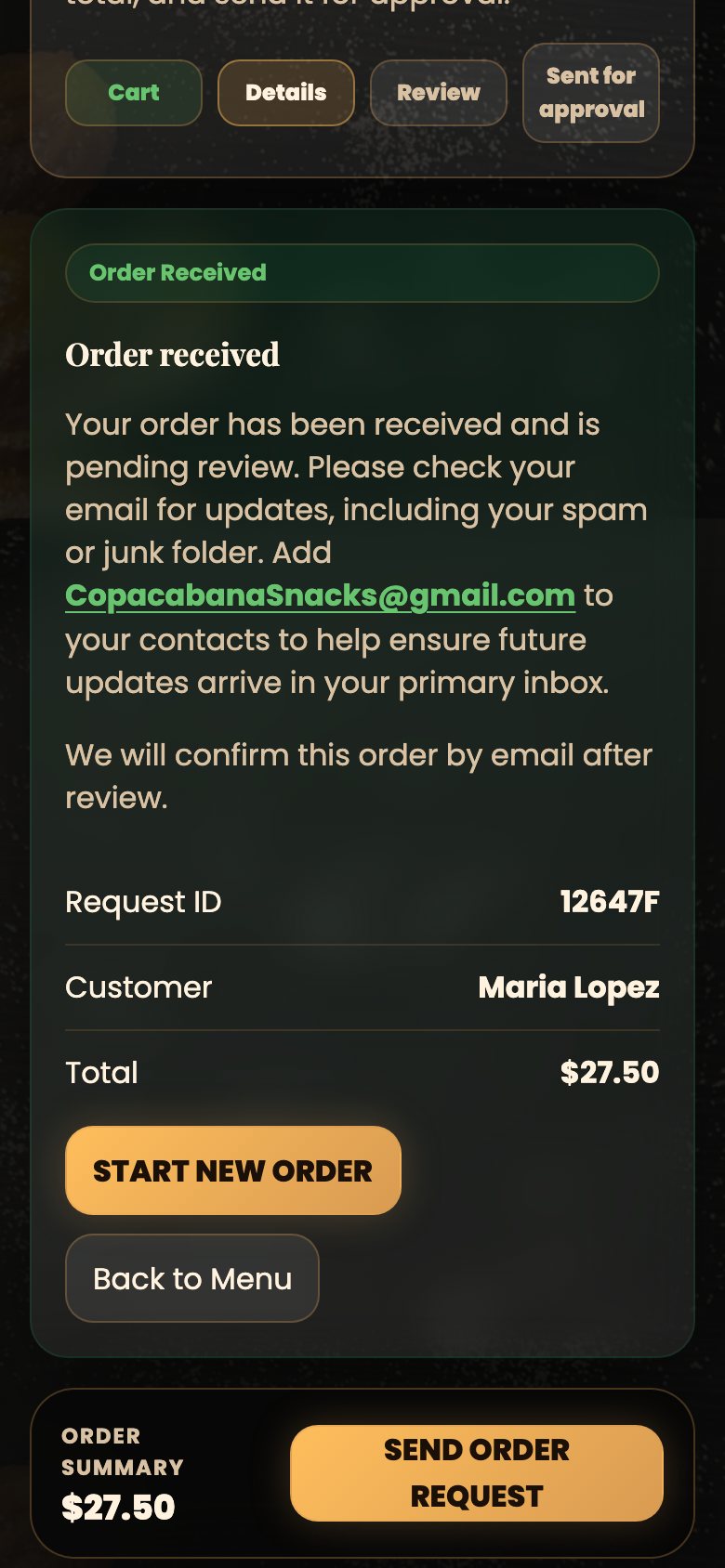
You will see Order received on the screen with your order number and total. We review the order and send the confirmation by email, so check your inbox and also your Spam or Junk folder. Adding CopacabanaSnacks@gmail.com to your contacts helps our messages reach you.
Good to know
Before you worry
No email yet?
It can take a few minutes and often lands in Spam or Junk. Save CopacabanaSnacks@gmail.com to your contacts so future updates arrive in your inbox.